

TL;DR
Salesforce and QuickBooks do not share a native first-party connector. You must choose a third-party method — DBSync, Breadwinner, Zapier, MuleSoft, or custom API. Each has a different cost, sync depth, and setup complexity. This guide covers all five methods with step-by-step configuration, a complete field-mapping reference, conflict-handling rules, and the twelve most common errors operators encounter after go-live.
Your sales rep closes a deal in Salesforce. The opportunity moves to Closed Won. Your finance team still waits for someone to manually create the invoice in QuickBooks.
That gap — between CRM close and accounting action — costs time, introduces errors, and distorts the revenue picture your leadership team depends on. The solution is a live connection between Salesforce and QuickBooks that moves data in both directions without human intervention.
This guide explains how to connect Salesforce to QuickBooks correctly. It covers why the integration matters, the five connection methods available in 2026, a detailed step-by-step setup for each major option, the full data sync map, field mapping configuration, conflict resolution rules, and the twelve errors most teams encounter after they go live.
Why Connect Salesforce to QuickBooks?
The business case for connecting Salesforce to QuickBooks comes down to four problems every revenue operator recognizes.
Double data entry slows your team. When a rep closes a deal in Salesforce, someone on the finance or ops team re-keys the same information into QuickBooks to generate an invoice. For a team closing 50 deals a month, that is hours of avoidable work every week.
Delays distort cash flow visibility. If invoice creation is delayed by 24 to 72 hours after a deal closes, your days sales outstanding calculation drifts. Finance plans against a revenue number that has not yet been formalized in the accounting system.
Data mismatch creates reconciliation overhead. A contact name spelled one way in Salesforce and another way in QuickBooks creates duplicate customer records. A deal amount that gets rounded in manual entry creates discrepancies that take an accountant hours to track down.
Payment status visibility drives sales behavior. When QuickBooks payment status flows back into Salesforce, account managers can see which customers have open invoices before they attempt upsell conversations. Without that visibility, AEs often pitch expansion to accounts that are 60 days past due.
Five Methods to Connect Salesforce to QuickBooks
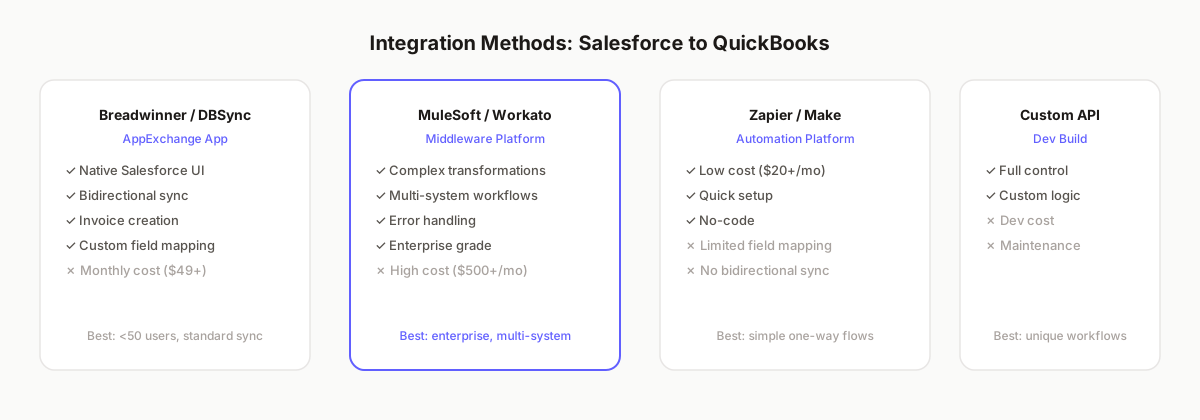
Salesforce does not publish a first-party QuickBooks integration. Every connection uses either an AppExchange application, a middleware platform, or a custom API build. Here is a structured comparison of the five methods available in 2026.
Method 1 — DBSync
DBSync is an AppExchange application purpose-built for Salesforce-to-accounting-system integrations. It supports QuickBooks Online and QuickBooks Desktop, bidirectional sync, and deep field customization. DBSync is the most frequently cited solution for mid-market operators who need reliable sync without developer involvement.
Method 2 — Breadwinner
Breadwinner installs inside Salesforce and creates a live connection to QuickBooks Online. It is designed for finance teams that want to see QuickBooks data directly inside Salesforce records. The setup process takes half a day for a standard configuration. Breadwinner does not support QuickBooks Desktop.
Method 3 — Zapier
Zapier connects Salesforce and QuickBooks Online through pre-built Zap templates. It is the fastest method to get something working. The limitation is sync depth — Zapier handles simple trigger-action workflows but struggles with complex field transformations, bidirectional sync, and error recovery. Use Zapier only for low-volume, simple pipelines.
Method 4 — MuleSoft Composer
MuleSoft is Salesforce's enterprise integration platform. It ships with a QuickBooks connector. MuleSoft handles complex multi-system orchestration — for example, syncing Salesforce with QuickBooks, an ERP, and a data warehouse simultaneously. The cost and setup time position it firmly in enterprise territory.
Method 5 — Custom API Integration
Both Salesforce and QuickBooks Online expose REST APIs. A development team can build a custom middleware layer that handles any sync requirement. This is the most flexible approach and the most expensive. Custom builds require ongoing maintenance as both platforms update their APIs.
Step-by-Step: Connect Salesforce to QuickBooks Using DBSync
DBSync is the recommended starting point for most teams. The following steps cover a standard DBSync configuration for Salesforce and QuickBooks Online.
Before You Begin
- Salesforce account with System Administrator profile or equivalent API access
- QuickBooks Online account at the Essentials tier or above (Simple Start lacks API access for all fields)
- A DBSync account — free trial available at AppExchange
- A clean data snapshot: deduplicate contacts and accounts in both systems before syncing
Step 1 — Install DBSync from AppExchange
- Log in to Salesforce. Navigate to Setup → AppExchange Marketplace.
- Search for "DBSync Cloud Workflow." Select the listing and click Get It Now.
- Choose whether to install in a sandbox first (recommended) or directly in production.
- Accept permissions for the package. DBSync requires API and data access across standard and custom objects.
- Complete the installation. DBSync will appear under Apps → DBSync in your Salesforce org.
Step 2 — Connect Your QuickBooks Account
- Open the DBSync app inside Salesforce. Navigate to Connections.
- Click Add Connection → QuickBooks Online.
- You will be redirected to QuickBooks for OAuth authorization. Sign in with your QuickBooks administrator credentials.
- Select the QuickBooks company file you want to connect. If you have multiple company files, connect each one separately.
- Return to DBSync. The connection status will show Active.
Step 3 — Configure the Opportunity-to-Invoice Sync
- In DBSync, navigate to Workflows → Create New Workflow.
- Set Source to Salesforce Opportunity. Set Target to QuickBooks Invoice.
- Define the trigger condition: StageName = Closed Won. This ensures only closed deals create invoices.
- Configure field mapping (see the complete map in the next section).
- Set sync direction: Salesforce to QuickBooks (unidirectional for invoice creation).
- Enable error notification emails. Specify the inbox that should receive sync failure alerts.
- Save the workflow and click Enable.
Step 4 — Configure Contact and Account Sync
- Create a second workflow. Set Source to Salesforce Account. Set Target to QuickBooks Customer.
- Set sync direction to Bidirectional. Changes in either system propagate to the other.
- Define the deduplication key. Use Email or a custom external ID field to prevent duplicate customer records.
- Map the required fields: Account Name → Customer Name, BillingStreet → Billing Address Line 1, and so on.
Step 5 — Configure Payment Status Writeback
- Create a third workflow. Set Source to QuickBooks Invoice. Set Target to Salesforce Opportunity or a custom Payment object.
- Sync the Balance and DueDate fields from QuickBooks to custom Salesforce fields: QB_Balance__c and QB_Due_Date__c.
- This writeback runs on a schedule — hourly or daily depending on your DBSync tier.
Step 6 — Test in Sandbox
- Create a test Opportunity in Salesforce with a known Account and Amount.
- Move the Opportunity stage to Closed Won.
- Wait up to five minutes for the sync to run. Open QuickBooks and search for the Invoice.
- Verify: customer name, invoice total, line items, due date, and billing address all match the Salesforce record.
- Check DBSync sync logs for any mapping warnings or skipped fields.
Step 7 — Go Live
- Replicate the validated configuration from sandbox to production.
- Notify both sales and finance teams of the new workflow. Define who owns sync error resolution.
- Monitor sync logs daily for the first two weeks. Most configuration issues surface within the first 50 transactions.
Step-by-Step: Connect Salesforce to QuickBooks Using Breadwinner
Breadwinner takes a different approach from DBSync — it surfaces QuickBooks data directly inside Salesforce records, so your team never needs to log in to QuickBooks to check invoice status. The setup is faster but the configuration flexibility is narrower.
- Go to AppExchange. Search for "Breadwinner for QuickBooks." Install the managed package in your Salesforce org.
- From Salesforce, open the Breadwinner Setup Wizard. Click Connect QuickBooks and complete OAuth authorization.
- Select your sync objects: Accounts to Customers, Opportunities to Invoices, Products to Items.
- Configure which Opportunity stage triggers invoice creation. Most teams set this to Closed Won.
- Map opportunity products (line items) to QuickBooks invoice line items. Each product in Salesforce must exist as an Item in QuickBooks, or Breadwinner will create it automatically on first sync.
- Set the default payment terms for new invoices (Net 30, Net 60, Due on Receipt).
- Enable the QuickBooks Panel component on the Opportunity page layout. This panel shows invoice status, balance, and payment history directly in Salesforce.
- Run the initial sync. Breadwinner will match existing Salesforce accounts to QuickBooks customers using email as the key.
- Verify with a test transaction. Confirm the QuickBooks Panel shows the correct invoice data on the Salesforce Opportunity record.
Step-by-Step: Connect Salesforce to QuickBooks Using Zapier
Zapier is appropriate for teams with low transaction volume (under 200 deals per month) and simple integration requirements. The setup requires no development work and runs in under two hours.
- Log in to Zapier. Click Create Zap.
- Set the Trigger app to Salesforce. Select the event Updated Opportunity.
- Connect your Salesforce account. Zapier will request API access — use an integration-specific user account, not your personal admin account.
- Add a Filter step: only continue if Stage equals Closed Won. This prevents partial-close or re-opened deal triggers from creating duplicate invoices.
- Add an Action step. Set the app to QuickBooks Online. Select the action Create Invoice.
- Connect your QuickBooks account. Map Salesforce fields to QuickBooks invoice fields: Opportunity Name → Invoice Memo, Account Name → Customer, Amount → Invoice Line Amount, Close Date → Invoice Date.
- Add a second Action: Find or Create Customer. This step looks up the QuickBooks customer by email before creating the invoice, preventing duplicate customer records.
- Test the Zap with a sample Opportunity record. Verify the invoice appears in QuickBooks with correct data.
- Turn on the Zap. Monitor the Zap history for the first week to catch any field-mapping gaps.
Zapier limitations to know: Zapier does not support bidirectional sync out of the box. Payment status writeback requires a separate Zap with a QuickBooks trigger. Zapier also does not handle product line items with multiple SKUs cleanly — if your invoices have more than one line item, DBSync or Breadwinner is the better choice.
Complete Salesforce to QuickBooks Field Mapping Reference
Field mapping is where most integration failures originate. Salesforce and QuickBooks use different data models, naming conventions, and field types. The diagram below covers the standard mappings for the three primary sync workflows.
Critical Field Mapping Notes
Customer matching. QuickBooks requires each invoice to link to an existing Customer record. Your integration must search for the QuickBooks customer by email or company name before creating the invoice. If no match is found, the integration should create a new customer — not fail the sync.
Line items vs. summary invoices. A Salesforce Opportunity with multiple Products maps to a QuickBooks invoice with multiple line items. Each line item references a QuickBooks Item. If the Item does not exist in QuickBooks, the sync will fail. Create a fallback Item called "Service — Unlisted" to catch unmatched products and prevent sync failures.
Currency handling. If your Salesforce org uses multi-currency, verify that QuickBooks is also configured for multi-currency before you sync. Mismatched currency settings cause invoices to be created with incorrect amounts.
Tax codes. Salesforce typically does not store tax codes. QuickBooks invoices require a tax code or a tax-exempt designation. Set a default tax code in your integration configuration for all invoices. Override it with a custom Salesforce field if you need per-deal tax handling.
What Data Syncs Between Salesforce and QuickBooks
The Salesforce-to-QuickBooks integration covers five primary data domains. Each domain has different sync directionality and frequency requirements.
1. Opportunities to Invoices
This is the primary sync. When a Salesforce Opportunity moves to Closed Won, the integration creates a corresponding Invoice in QuickBooks. The sync is typically unidirectional — Salesforce to QuickBooks. The invoice number in QuickBooks can be set to match the Salesforce Opportunity ID or a custom quote number field.
2. Accounts and Contacts to Customers
Salesforce Account records map to QuickBooks Customer records. Salesforce Contact records map to QuickBooks Customer sub-contacts. The sync is bidirectional — updates in either system propagate to the other. Use email as the deduplication key to prevent the same organization from appearing as two customers.
3. Products and Price Books to Items
Salesforce Product records map to QuickBooks Item records. If your Salesforce catalog changes frequently, configure the product sync to run nightly. New Salesforce products create new QuickBooks items. Pricing changes in the Salesforce price book can update QuickBooks item rates if bidirectional product sync is enabled — use caution here, as it can override manual QuickBooks pricing.
4. Payment Status Writeback
QuickBooks invoice payment status (Paid, Partial, Overdue) writes back to Salesforce. This runs from QuickBooks to Salesforce. The typical configuration writes to a custom field on the Salesforce Account or Opportunity record. Your team can then build Salesforce reports showing accounts by payment health — useful for prioritizing collection calls or flagging renewal risk.
5. Quotes and Estimates (Advanced)
Some configurations sync Salesforce Quotes to QuickBooks Estimates. This is less common and only appropriate for teams that use QuickBooks Estimates as part of a formal approval workflow. Most teams skip this and only sync at the closed-won stage.
Handling Data Conflicts and Sync Errors
Data conflicts occur when the same field is updated in both Salesforce and QuickBooks between sync runs. The most common conflict points are customer name, billing address, and invoice amount.
Establish a master system per field. The most reliable approach is to declare Salesforce as the master for deal-related fields (amount, close date, opportunity owner) and QuickBooks as the master for accounting-related fields (payment terms, tax code, account class). Document this decision and enforce it in your sync configuration.
Use timestamp-based resolution carefully. Some integration tools use "last modified wins" as the default conflict rule. This is dangerous for invoice amounts — a QuickBooks accountant correcting a line item should not be overwritten by a Salesforce sync that runs two minutes later.
Lock invoices after creation. Configure your integration to treat QuickBooks invoices as read-only after they are created. Updates to a closed Salesforce deal should generate a new invoice or a credit memo, not silently modify the existing record.
Build an exception queue. Any sync record that fails or triggers a conflict rule should land in an exception log. Assign a team member to review the exception queue daily for the first month of go-live. Most issues self-correct once the configuration is tuned.
12 Common Errors and How to Fix Them
The following errors account for over 80 percent of post-go-live support tickets reported by teams running Salesforce-to-QuickBooks integrations.
Error 1 — Duplicate Customer Records
Symptom: QuickBooks shows two customers with the same company name after initial sync. Cause: No deduplication key was set, or email addresses differ between systems. Fix: Standardize email in both systems. Set email as the deduplication key in your integration tool. Merge duplicate QuickBooks customers manually for existing records.
Error 2 — Invoice Amount Mismatch
Symptom: QuickBooks invoice total does not match the Salesforce opportunity amount. Cause: Line items are mapped individually, but a rounding or currency conversion applies differently per line. Fix: Review line-item-level mapping. Add a reconciliation check that compares the Salesforce opportunity amount to the sum of QuickBooks invoice lines before the sync completes.
Error 3 — Missing QuickBooks Item
Symptom: Sync fails with "Item not found" for an opportunity line item. Cause: A Salesforce Product does not have a matching QuickBooks Item. Fix: Create a catchall QuickBooks Item (e.g., "Service — General"). Configure the integration to use this item as a fallback when no match is found. Review failed records manually to assign correct items.
Error 4 — OAuth Token Expiry
Symptom: All syncs fail simultaneously with an authentication error after weeks of success. Cause: QuickBooks OAuth tokens expire every 180 days. The integration user must re-authorize. Fix: Set a calendar reminder 30 days before the 180-day expiry. Re-authorize in the integration tool. Confirm whether your tool handles token refresh automatically.
Error 5 — Closed Won Re-trigger
Symptom: The same opportunity creates multiple invoices in QuickBooks. Cause: An update to a Closed Won opportunity (e.g., a field edit) re-triggers the sync workflow. Fix: Add a filter condition: only trigger invoice creation if a custom field QB_Invoice_Created__c is false. Set it to true after the first successful sync.
Error 6 — Field Type Mismatch
Symptom: Date fields or phone numbers fail to sync. Cause: Salesforce stores dates as YYYY-MM-DD. QuickBooks expects MM/DD/YYYY in some contexts. Fix: Add a transformation rule in your integration tool to reformat date and phone fields before they reach QuickBooks.
Error 7 — Multi-Currency Mismatch
Symptom: Invoice amounts appear inflated or deflated in QuickBooks. Cause: Salesforce stores deal amounts in a corporate currency. QuickBooks is not configured for multi-currency and interprets all amounts as the default currency. Fix: Enable multi-currency in QuickBooks before syncing. Add a currency code field to your mapping. Test with deals in non-default currencies.
Error 8 — Contact Without Account
Symptom: Some QuickBooks customers are created without a company name. Cause: Salesforce contacts linked to opportunities without a parent Account record. Fix: Add a validation rule in Salesforce requiring an Account on every opportunity. Retroactively assign orphan contacts to the correct accounts before re-syncing.
Error 9 — QuickBooks API Rate Limit
Symptom: Syncs succeed individually but batch syncs time out or partially complete. Cause: QuickBooks Online has API rate limits (500 requests per minute per company file). Fix: Configure your integration tool to throttle batch syncs. Schedule large initial syncs for off-peak hours. Use incremental syncs (only changes since last run) rather than full syncs.
Error 10 — Tax Code Missing
Symptom: QuickBooks rejects invoice creation with a tax code error. Cause: Your QuickBooks account requires a tax code on every invoice, but no default is set in the integration. Fix: Set a default tax code (e.g., "Tax-Exempt" or the relevant state code) in your integration tool configuration. Override with a Salesforce custom field when per-deal tax handling is required.
Error 11 — Sandbox vs. Production Confusion
Symptom: Test data appears in production QuickBooks, or real deals are missing from sync. Cause: Integration was configured against sandbox but went live without updating the Salesforce org endpoint. Fix: Maintain separate integration configurations for sandbox and production. Use clearly labeled connection names. Never reuse a sandbox configuration in production.
Error 12 — No Error Notifications Configured
Symptom: A sync failure runs silently for days before anyone notices invoices are missing. Cause: Error notification emails were not set up during configuration. Fix: Configure error alerts in your integration tool immediately after setup. Send alerts to both the Salesforce admin and the finance team lead. Review sync logs at least weekly.
Salesforce to QuickBooks Desktop vs. QuickBooks Online
QuickBooks Desktop is a fundamentally different integration target from QuickBooks Online. The API architecture, authentication model, and sync capabilities differ significantly.
QuickBooks Online exposes a modern REST API. All five connection methods in this guide support QuickBooks Online. OAuth 2.0 handles authentication. Sync can run in real time or near real time.
QuickBooks Desktop uses a different API called the QuickBooks Desktop SDK or the IIF file format for data import. DBSync supports Desktop. Breadwinner and Zapier do not. Real-time sync is not possible with Desktop — the integration typically runs on a schedule (every 15 to 60 minutes) using a locally installed sync agent on the machine running QuickBooks Desktop.
QuickBooks Desktop Enterprise supports ODBC connections, which open additional integration paths including direct database-level sync tools. This is relevant for teams running very high transaction volumes or needing access to QuickBooks fields that are not exposed through the standard API.
If your business is currently on QuickBooks Desktop, evaluate whether migrating to QuickBooks Online before implementing the Salesforce integration makes sense. The migration effort is typically one to two weeks, and the expanded integration capabilities pay for that time within the first quarter.
Beyond Integration: Turning Synced Data Into Operating Decisions
Connecting Salesforce to QuickBooks solves the data plumbing problem. But synced data alone does not answer the questions that drive operator decisions.
Your leadership team needs to see pipeline alongside invoiced revenue and margin in the same view. A deal that closes in Salesforce and generates an invoice in QuickBooks is only half the story — the margin on that deal, the payment timeline, and how it compares to forecast are what determine whether you are hitting plan.
Fairview sits above your connected systems and surfaces the operating picture your team needs. It ingests data from Salesforce and QuickBooks, normalizes it into a single data layer, and delivers the weekly operating metrics — pipeline coverage, closed revenue, margin by product line, and collection status — that COOs and revenue operators use to run the business.
Rather than building custom reports in both Salesforce and QuickBooks and reconciling them manually each week, Fairview gives your team one place to see what is making money, what is leaking margin, and what to do next.
For more context on related integrations and tools, see the guide to connecting HubSpot to QuickBooks, the Pipedrive to QuickBooks guide, and a comparison of the best data integration tools in 2026. If you are evaluating your accounting platform, the alternatives to QuickBooks Online guide covers the full landscape. To understand the downstream value of connected data, see the data pipeline guide for small businesses and the AI data integration challenges operators face in 2026.
Key Takeaways
- Salesforce does not have a native first-party QuickBooks integration. Use DBSync, Breadwinner, Zapier, MuleSoft, or a custom API build.
- DBSync and Breadwinner are the strongest options for most mid-market teams. Zapier works for small teams with low transaction volume.
- Set a master system per field type — Salesforce owns deal fields, QuickBooks owns accounting fields.
- Always use email as the customer deduplication key to prevent duplicate QuickBooks customer records.
- Create a fallback QuickBooks Item to catch unmatched Salesforce products and prevent sync failures.
- Configure error notifications before go-live. Silent sync failures are the most expensive integration problem.
- QuickBooks OAuth tokens expire after 180 days. Set a reminder to re-authorize before expiry.
- Lock invoices after creation. Updates to Closed Won deals should create credit memos, not silently modify existing invoices.
- Monitor sync logs daily for the first two weeks. Most configuration issues surface in the first 50 transactions.
- A sync connection moves data. An operating intelligence layer like Fairview turns that data into decisions.